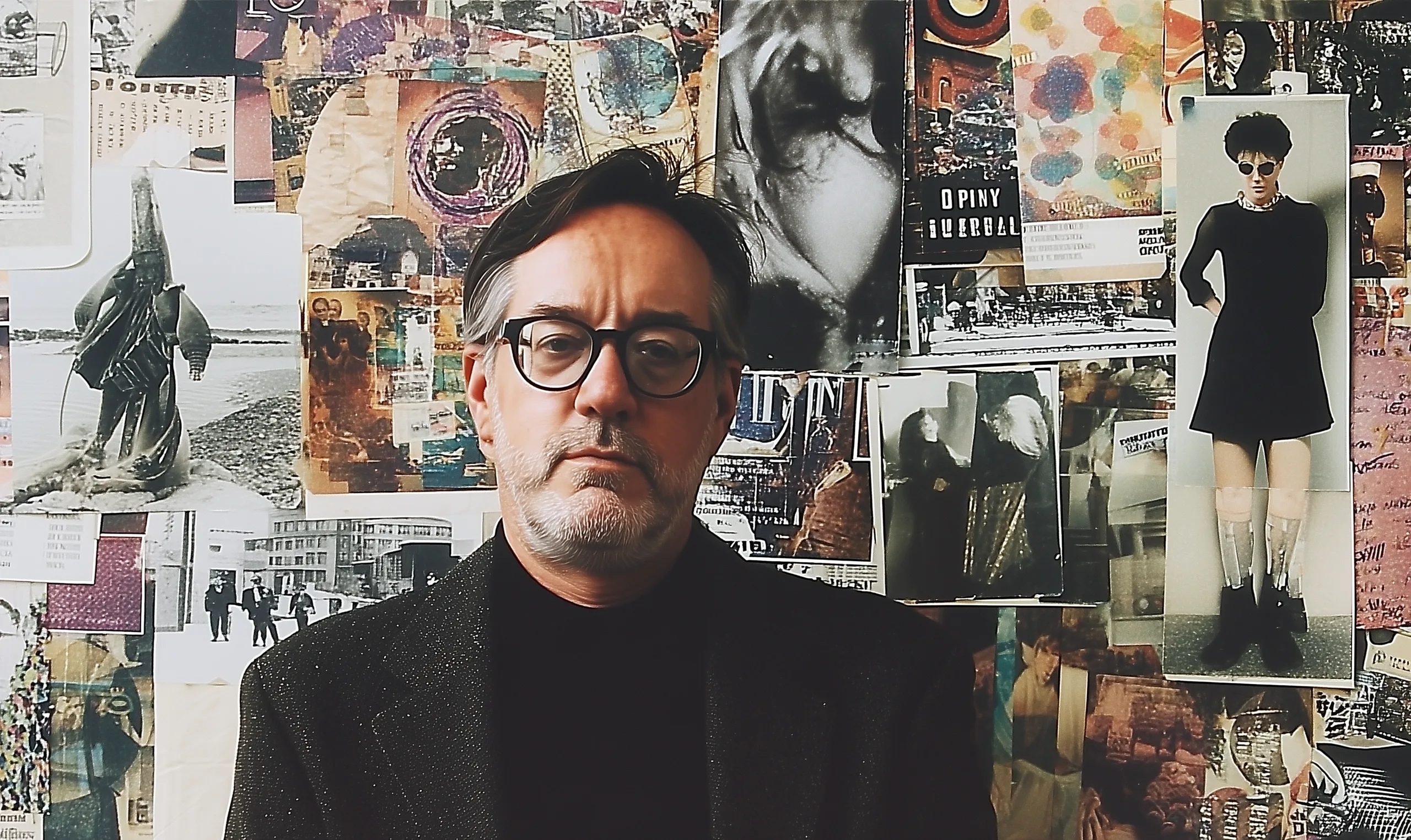

Column Five ACD Kyle Light walks through seven AI tools and workflows he reaches for in a normal week of agency work. He explains what he uses each for, and the parts of the creative process he refuses to let AI touch. Tools covered: Topaz Gigapixel, ChatGPT, Midjourney, Jitter, Endless Tools, and Claude.
Most “how to use AI” style content can be unsatisfying. It tends to be either far too technical for an average reader, or tries to be everything to everyone, and as a result ends up too vague or elementary to help anyone. As AI practitioners in the creative industry, we at Column Five figure it may be helpful to simply explain the basic tasks we’ve begun recruiting AI tools’ help.
We asked one of our ACDs, Kyle Light, to walk through the AI tools he reaches for in a normal week, what he uses them for, and what he refuses to let them touch.
He shared seven straightforward workflows, naming specific tools and purposes, in the hopes it can help a fellow creative get unstuck, spark inspiration, or do things a little bit faster.
1. Upscaling Low-Res Client Assets
Tool: Topaz Gigapixel
How do you fix a pixelated image that needs to print large? Just the day before we spoke, our client-friends at Databricks sent over an image flagged for a large-format print, pixelated and unusable at scale. The traditional fix was either sourcing a new image (slow) or buying a stock equivalent (expensive). Kyle instead dropped it into Topaz Gigapixel, ran the upscaling, and sent back a crisp high-res version the same afternoon.
“They were like, wow, that was fast. They didn’t ask about the tool. It was just, ‘I’ll drop this here.'”
Used for: rescuing existing client assets, salvaging old logos, prepping print files.
2. Sourcing Mock-Up Imagery Without Stock Sites
Tool: ChatGPT (image generation)
How do you get a specific mock-up image, like a person holding an iPad at the right angle, without paying for stock? Kyle pulls a reference from Pinterest, drops it into ChatGPT with the prompt “recreate this, but change the angle of the person to X.” Not perfect, but it gets the message across in a pitch deck, and replaces the $20–30 stock purchase that used to be the default move.
Used for: deck mock-ups, concept sketches, replacing $20–30 stock purchases.
3. Animating Logos Without Hiring an Animator
Tool: Jitter
How do you add a logo animation to a pitch deck when you’re not an animator? Years ago, Kyle would have storyboarded it and briefed an external animator, and the client would have been charged for the work. For a recent sub-brand pitch where the brief was wow the founder, Kyle built the animation himself in Jitter in about three hours. The animated logo shows up in the deck unprompted, as a kind of gift.
“What used to take all day takes half a day, sometimes less. And the delivered work speaks for itself.”
For those keeping score at home, that’s roughly a 50% efficiency gain.
Used for: pitch deck embellishments, animated logo reveals, motion treatments on static brand assets.
4. Generating 3D Treatments from 2D Assets
Tool: Endless Tools
How do you render a flat logo in three dimensions without learning Cinema 4D? Kyle drops a flat shape into Endless Tools, chooses a texture (glass, metal, clay, sand), adjusts the lighting and angle to match a Pinterest inspiration board, and gets a polished 3D render in 20 minutes. The old workflow required a 3D designer, or sometimes even an external 3D agency partner.
“It looks like it took ages to complete.”
Used for: 3D logo mock-ups, premium-feel deck imagery, branded object visualization.
5. Concepting Original Characters to Pressure-Test with Clients Before Illustration
Tool: ChatGPT
How do you mock up an original character for a campaign pitch without commissioning illustration? Kyle prompts ChatGPT with the concept, say a fox for a brand campaign, and frames it like “a Pixar artist would design this.” Once he has the base, he iterates: now have it smile, now jump, now run. By the end, he has a character sheet polished enough to pitch. If the client signs off, the work can then go to a real 3D artist for the polished version. To be clear, none of the AI-generated concepting ever ships to market as-is. This workflow lives in the pre-illustration space where mood boards, scratch sketches, and reference decks used to sit, and it just gets us to a discussable artifact faster.
This is the classic AI use case that applies across so many job functions: It’s never been quicker to go from idea to execution.
“The idea came from me. AI didn’t come up with that. I just asked it to render what was already in my head.”
Used for: character-led campaign pitches, mascot concepts, illustration mock-ups before commissioning real work.
6. Building Interactive Pitch Decks Instead of Static Slides
Tool: Claude (artifacts/microsites), Figma
How do you give a client a pitch deck that doesn’t feel like every other pitch deck? The C5 team has been experimenting with Claude Design as a deck environment, designing slides in Figma and then feeding them into Claude to generate interactive microsite versions. Instead of a static slide with copy crammed next to artwork, the client gets a link, clicks through, and surfaces information when they want it.
“There’s a thing about decks that irks me. You’re trying to give a lot of information on one slide, and it’s all static. When the client can instead explore that information themselves, it becomes a story.”
Used for: high-stakes pitches, premium deck delivery, interactive brand reveals.
7. Searching Midjourney’s Prompt History for Visual Inspiration
Tool: Midjourney (Explore / search)
How do you find inspiration without scrolling Pinterest? Midjourney’s built-in search (under Explore) is an underrated resource. Kyle types a phrase like “a logo made of glass” and gets every variation other designers have already prompted. He’ll copy the prompt language they used, adapt it, and run his own version. He’s not lifting the output. He’s studying the textures, the lighting angles, the rendering choices.
“It’s almost a side door of AI. You’re building off what people have already done. My goal is to find inspiration on the angle, the lighting, the materials. Not to use it whole. That’s not original.”
Used for: visual direction research, texture and lighting reference, mood board acceleration.
The Principle Underneath All Seven
A pattern runs through every workflow above: Kyle isn’t using AI to make his core designs. He’s using it to present, embellish, and inspire design. To mock up the idea, render the pitch, upscale the asset, animate the embellishment. The thinking, the concepts, the negative-space sketchbook moments stay human.
His framing:
“I think of it like I’m the teacher with the chalkboard, and the AI is a student in one of the chairs. This is how my brain works. And I’m teaching it.”
What he won’t do: type “design me a logo” into anything. Use a Midjourney output whole. Let his sketchbook gather dust.
“If you rely on AI, your skill set stops. You stop teaching your brain to create in different ways. Your work plateaus.”
There are two ways to get AI wrong right now: refuse to engage with it at all, or let it do the part of the work that makes you a creative in the first place. The sweet spot is to use AI relentlessly for what was always overhead, busywork, and protect what is actually craft.
This is the first piece in our series on how individual roles at C5 use AI in real work. For a writer’s-eye view of the same shift, see how C5 copywriter Brad Cook actually uses AI on technical copy.
Find Kyle’s work littered all over our site (and our brand), or at his portfolio page. To get him and Column Five involved with your brand directly, reach out.




Let's upgrade your marketing game
Get fresh tips, how-tos, and expert marketing advice every week. (15,000 people already are.)